Hem for Mac

Your day, tucked
into the edge.

Hem is a planner that lives at the edge of your screen. To-dos, notes, calendar and projects, one move away and never in the way.

Free for 3 days · macOS 15 Sequoia or later · No account needed

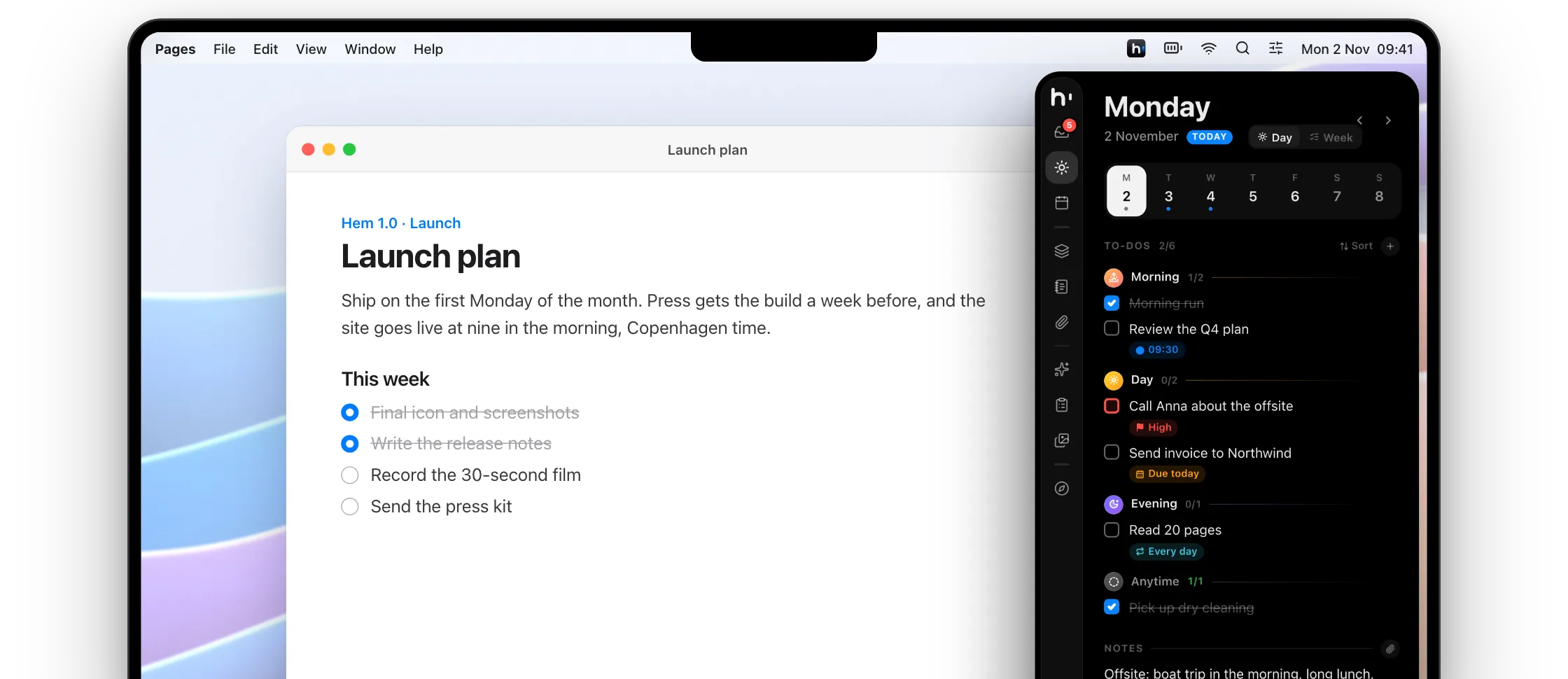
Hem’s day view open at the right edge of a MacBook screen, next to a launch plan

Everything for today.
Nothing in the way.

Hem keeps your to-dos, notes, calendar and projects in one slim panel, ready the moment you need it.

Always there

One move away.

Push your pointer against the edge of the screen, or press ⇧⌘Space. Hem slides out over any app, then tucks itself away.

Friday

6 NovemberTODAY
To-dos1/5
Notes
Offsite: boat trip in the morning, long lunch, roadmap after.

Quick capture

Capture in plain words.

Press ⌥⇧Space anywhere and just type. Hem picks out the day, the priority, the reminder and how often it repeats.

Planner

Morning, day and evening.

Every day has room for the morning, the day and the evening. Put a to-do where it fits, and watch each part fill up as you go.

Today

Monday 2 November
07:30
Morning0/2
Day0/2
Evening0/2

Someday

A home for maybe.

Park what you're not doing now. Each to-do shows how long it has waited, so picking one up, or letting it go, is easy.

Inbox

4 to-dos to sort
To sort

Calendar

Give to-dos a time.

Drag a to-do onto the calendar and it gets a real slot next to your meetings, without cluttering your Mac's calendars.

Friday6 November
09:00
10:00
11:00
12:00
13:00
14:00
Standup
Lunch with Mia12:00 – 13:00 · Torvehallerne
Design review13:30 – 14:30
To plan3 Inbox 5
Write the launch post1 h
Call the bank30 min
Book train to Aarhus15 min

Workspaces

Work and life, kept apart.

Give Work and Personal their own to-dos, notes and projects. Switch with one click or ⌃⌘1, all on your Mac, with no login.

Today

Saturday · 2 to-dos left
Morning1/2
Evening0/2

Quick sums

Do the maths where you write.

End a line with = for sums, percentages, currencies, time zones and units. Press Tab to keep the answer.

Offsite

Note · edited just now

Boat trip in the morning, long lunch, roadmap after. No laptops.
Boat and lunch
End a line with = and press Tab to keep the answer.

Share menu

Save from any app.

Share links, text, photos and files from Safari, Finder or Photos straight to today's notes, a quick note or Files.

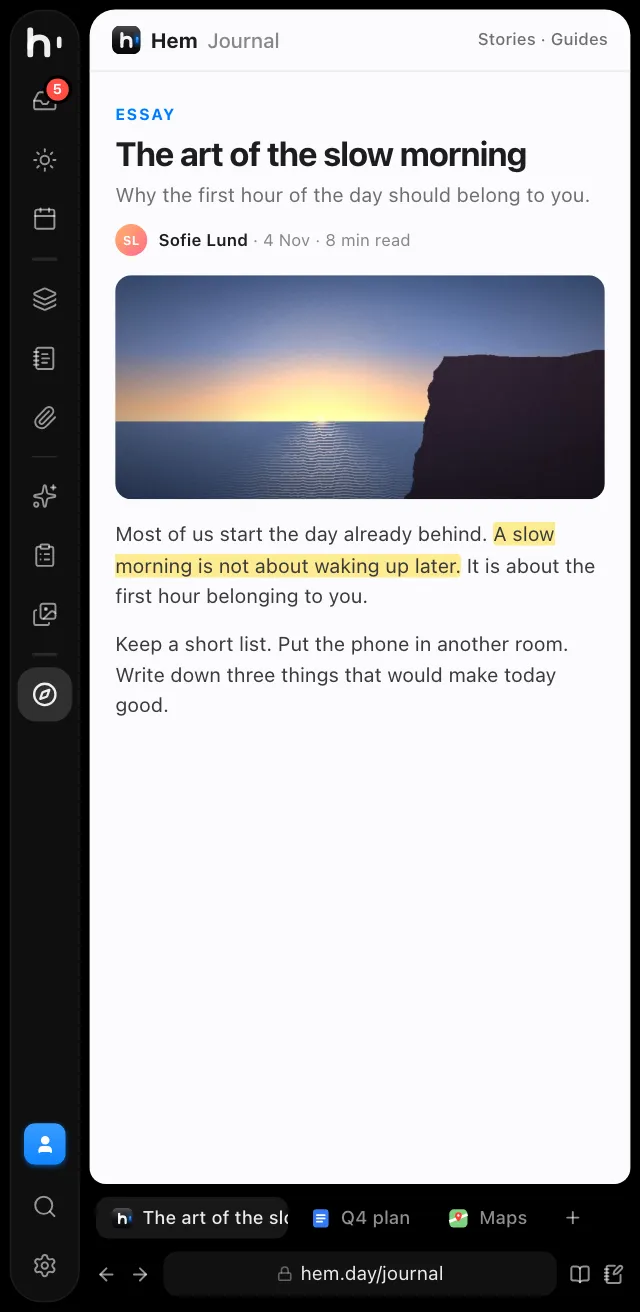
hem.day/journal
Essay
The art of the slow morning
Sofie Lund · 8 min read

Most of us start the day already behind. A slow morning is not about waking up later. It is about the first hour belonging to you.

Notes
Picked up two good quotes this morning.
Notes, links and files for this day

Prompt vault

Prompts that bring context.

Keep your best prompts with their files. Tag a note or a day and Hem adds its latest version every time you paste.

What should I do next?

Read @Q4 plan and my day @today. Suggest the three things I should do next, and why.

Live context Q4 plan Today
Copy all Drag2 files
Your AI app
Ask anything

Projects

Know where things stand.

Phases, deadlines and pace for every project. Tick off a to-do and you see what moved, and what's slipping.

This week
0↑0
Due soon
0
Attention
0
Hem launchPhase 2 of 3 · Build
0%
Active1 DecAhead5 this week
Up next
Kitchen renovationPhase 1 of 3 · Plan
0%
Behind2 overdue

Inside Hem

More than a to-do list.

Notes, files, your calendar and even a browser live in the same slim panel, each one built to fit it and one shortcut away.

Notes ⌘5

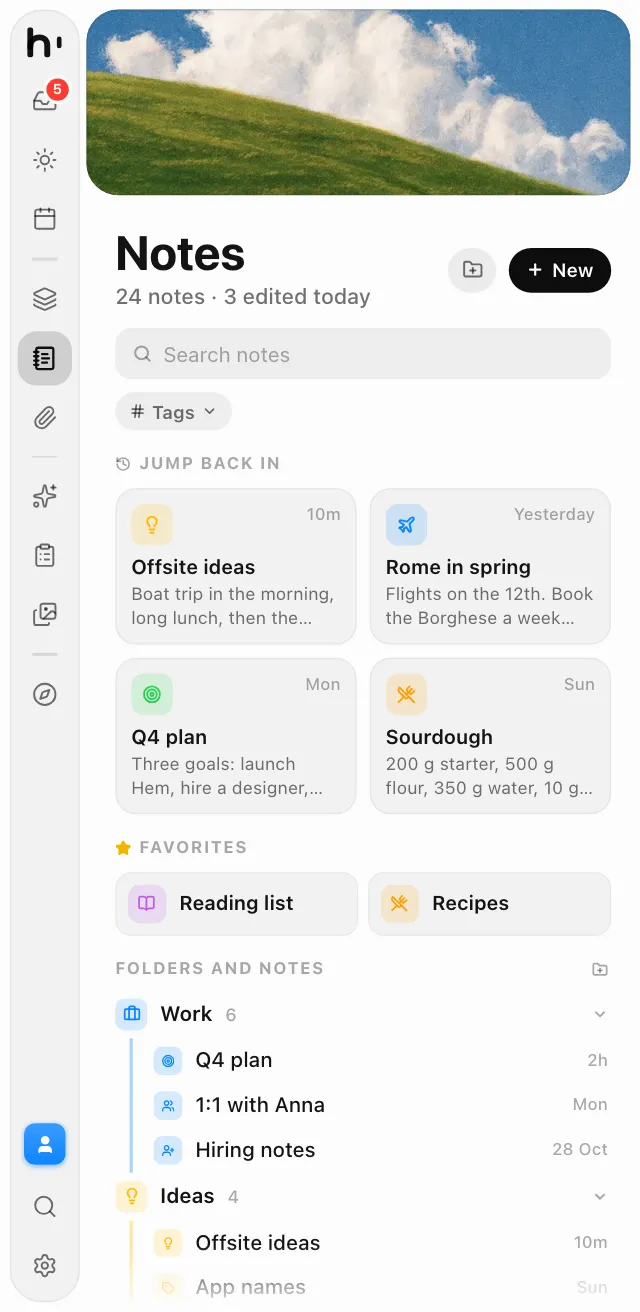
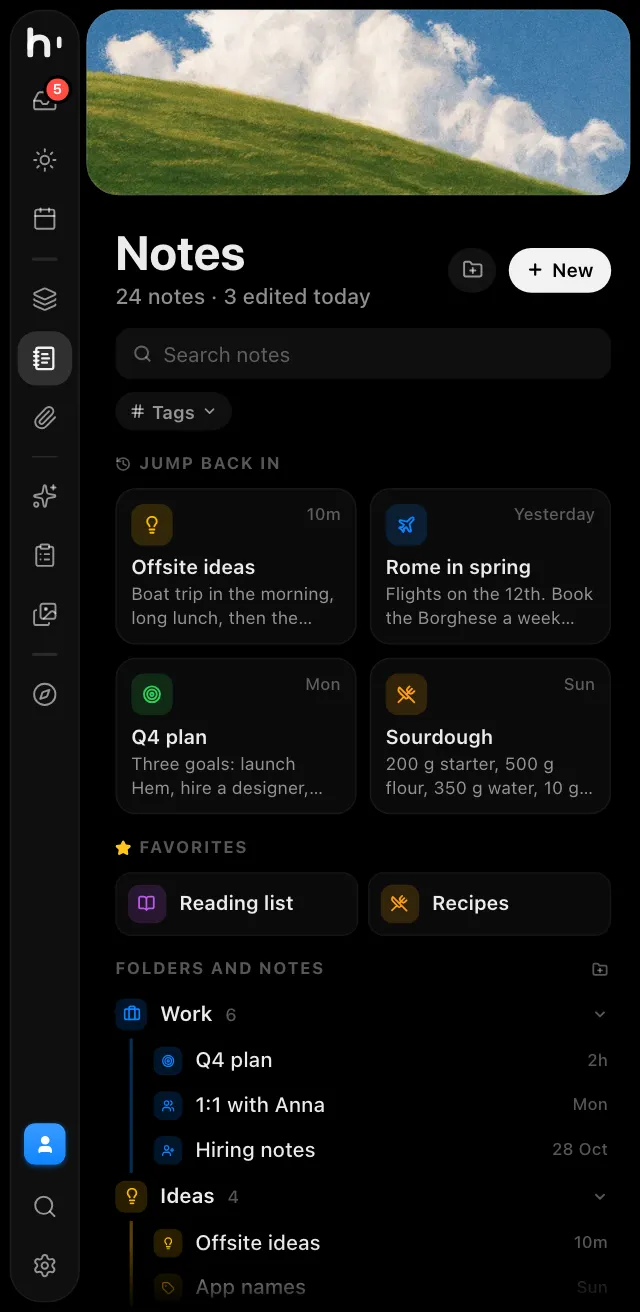
Notes that hold together.

Pages hold other pages, link to each other and pick an icon that fits their title.

Hem’s Notes in the dark and light themes, with notes to jump back into, favourites and folders.

Planner ⌘2

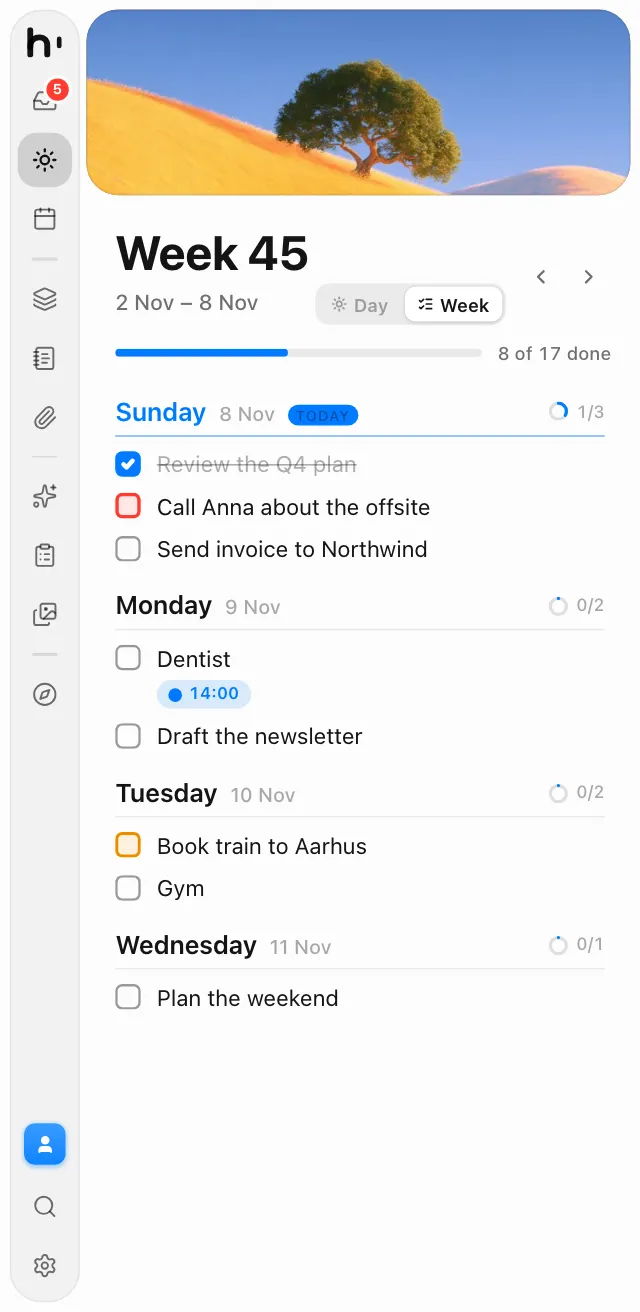
The whole week in one list.

Press ⌘2 again to flip a day into its week, then drag to-dos between days.

Hem’s week view with each day’s to-dos in one list

Search everything.

Any to-do, page, file or prompt, and actions too.

  • launch
  • rome
  • brand
  • recipes
  • reading

Tags tie it together.

One word links pages, projects, files and screenshots.

Files ⌘6

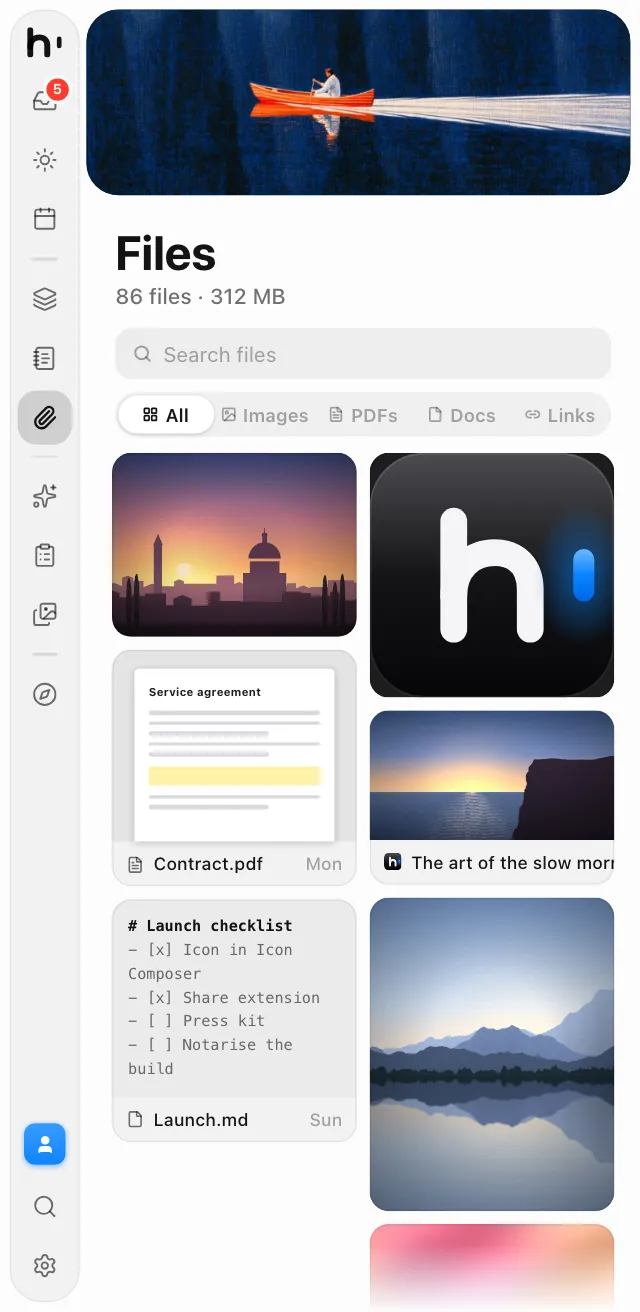
Every file you drop, kept.

Pictures, PDFs and links from anywhere, in one grid.

Hem’s Files with pictures, a contract PDF and a launch checklist in a grid

Inbox ⌘1

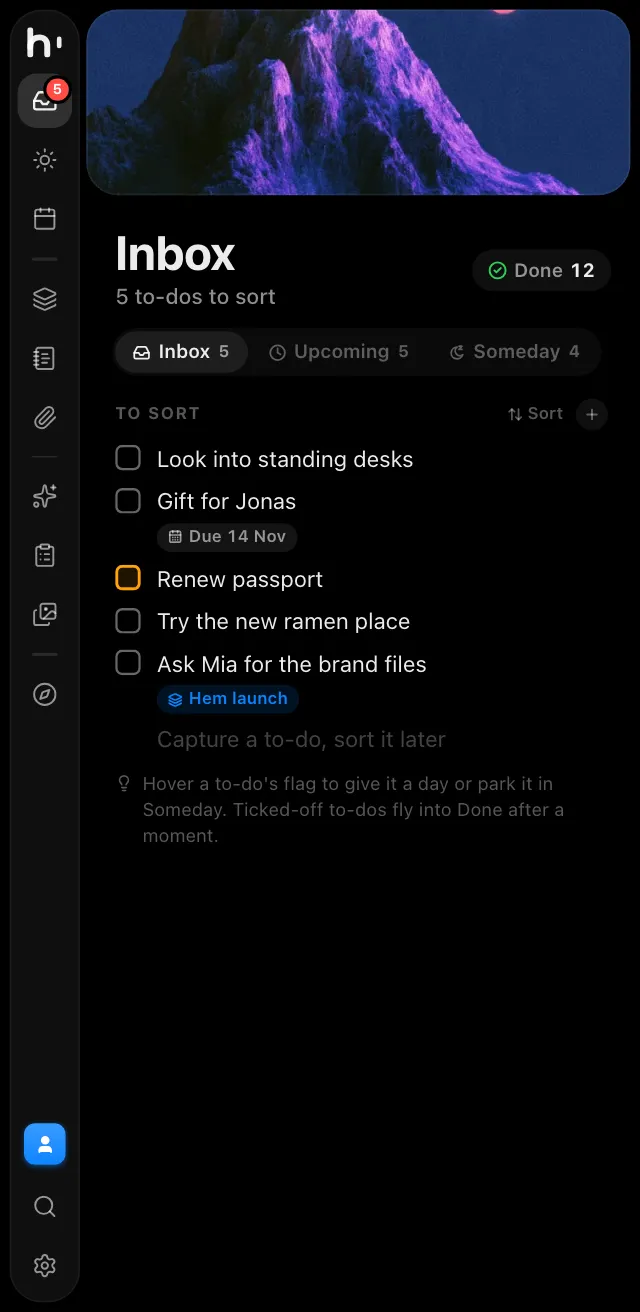
Inbox first, sort it later.

Capture now, then give each to-do a day, a project or Someday.

Hem’s Inbox with to-dos waiting to be sorted

Calendar ⌘3

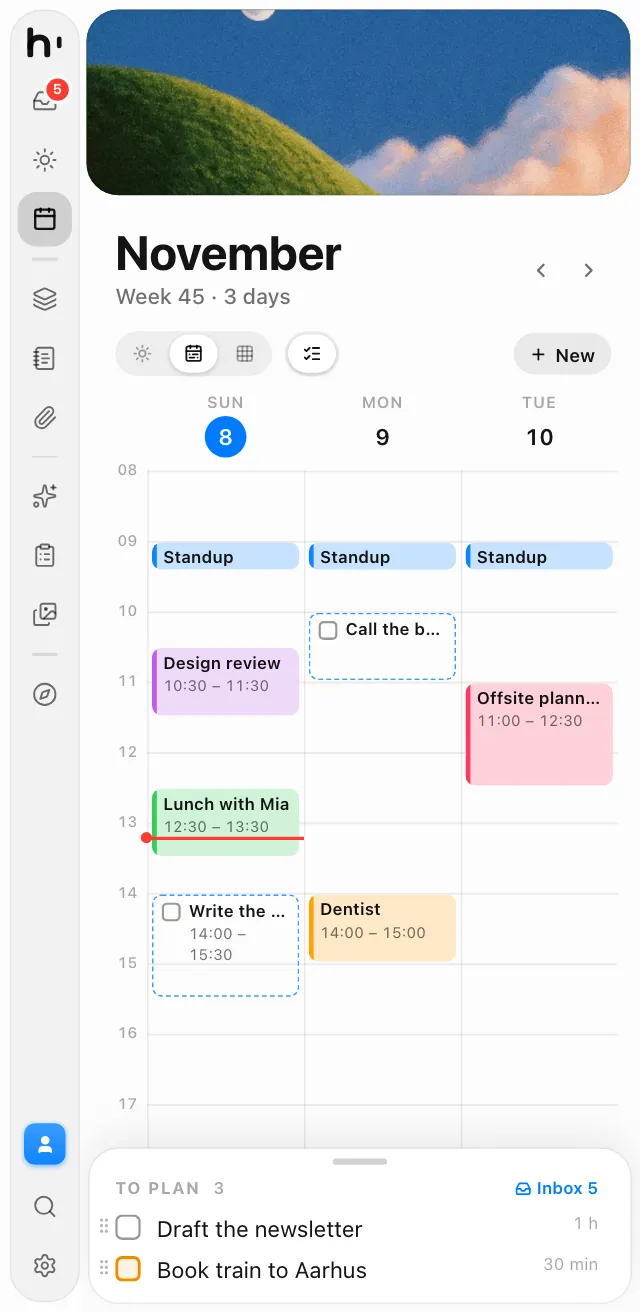
Your calendars, in the panel.

iCloud, Google and Exchange, in a day, week or month view.

Hem’s calendar showing three days of meetings and planned to-dos

Browser ⌘0

A browser, right there.

Tabs and bookmarks for looking things up without leaving your work.

Hem’s browser showing an article, with tabs along the bottom

Tools, built in

The tools you reach
for all day.

A clipboard history, screenshots with Beautify, an image converter and a shelf for files. Each one is off until you turn it on, and when it's off, it's gone.

Clipboard

Everything you copied, a key away.

Press ⌘B in any app and Hem comes out on your clipboard history: text, links, pictures, files and colours, parted into days. Pick one and press Return to paste it where you were.

⌘B from any app

  • Folders keep clips for good
  • Search by words or dates, like “invoice 3 nov”
  • Passwords and private copies are never kept

Screenshots

Screenshots, ready to share.

Take an area, a window, the text in it or the whole screen. A preview comes out of the edge, and Beautify puts the shot on a background with padding, a shadow and a tilt, ready to paste.

⇧⌘4 for an area

  • Beautify any picture, not just screenshots
  • Text mode copies the words in any area
  • Every shot is kept in Files, and search reads it

Converter

Smaller pictures, in one go.

Drop pictures, a folder or a .zip. Pick a template like Website or Social post, or set the format, quality and size yourself, and Hem converts them all at once, right on your Mac.

⌘9 in Hem

  • JPEG, PNG, HEIC, WebP, AVIF, RAW and more
  • Before and after, side by side with a slider
  • New names from a pattern, with a live preview

Edge shelf

A shelf for files, at the edge.

Drag files toward the bottom of the screen edge and a black shelf grows out to hold them. Switch apps and Spaces with your hands free, then drag them out where they belong.

Drag toward the edge

  • Folds into a chip with the newest files on it
  • Drag one out, or all of them at once
  • Keeps out of hot corners and the edge tab

Turn each tool on in Settings. A tool that's off takes no shortcuts, watches nothing and holds nothing in memory, and what you kept waits for you.

Ten modules, one panel

Your whole day,
at its real size.

The panel is slim, so every module is built to fit it. Pick one to see it, or use the icons in the sidebar, just like in the app.

Plan a day, or see the whole week in one scrolling list. Switch between the two in the header.

  • Day: to-dos by morning, day and evening, then notes
  • Week: every day's to-dos, drag them between days
  • ⌘2 again switches Day and Week

Friday

6 NovemberTODAY
To-dos2/6 Sort
Morning1/2
Day0/2
Evening0/1
Anytime1/1
Notes
Offsite: boat trip in the morning, long lunch, roadmap after. No laptops.
Calendar
Standup09:00 – 09:15
Lunch with Mia12:30 – 13:30 · Torvehallerne

And a lot more, in the same panel.

Drag to plan

Drag a to-do and drop boxes rise: Today, Tomorrow, Next week or Inbox.

Back and forward

⌘[ and ⌘] move through pages, just like in a browser.

People

Everyone in your life and what's going on with them. Optional.

Paste anywhere

⌥⇧P pastes a prompt, with its files, into the app in front.

Live context

Tag a note or @today in a prompt and Hem adds its latest version.

Next free time

Plan a to-do into the first slot that skips your meetings.

Quick notes

Jot it down on the go, then keep it as a page or add it to one.

Stats

Streaks, a 14-day chart and how much you wrote, all on your Mac.

Built for AI

Plan with your AI.

Ask Claude, Cursor or Codex to sort out your day, and watch it happen in Hem. Your AI apps can read and plan your to-dos, notes and projects, only as far as you allow.

Your AI app hem connected
…
Reply…

This week

Changes from your agent show up live
Today6 Nov2/4
Tomorrow7 Nov0/1
Friday13 Nov
Nothing planned

You choose the access.

Off, read only, or read and write. Every change an agent makes is logged.

Works with your AI apps.

84 tools over MCP, set up in one line.

Skills and memory, shared.

Install a skill in Claude Code with one click. Memory tells every agent who you are and what you decided.

Private by design

Made for your Mac.
Kept on your Mac.

Hem is a native Mac app. It is fast, it works offline, and your plans stay on your computer. Sync through your own iCloud if you like, never through us.

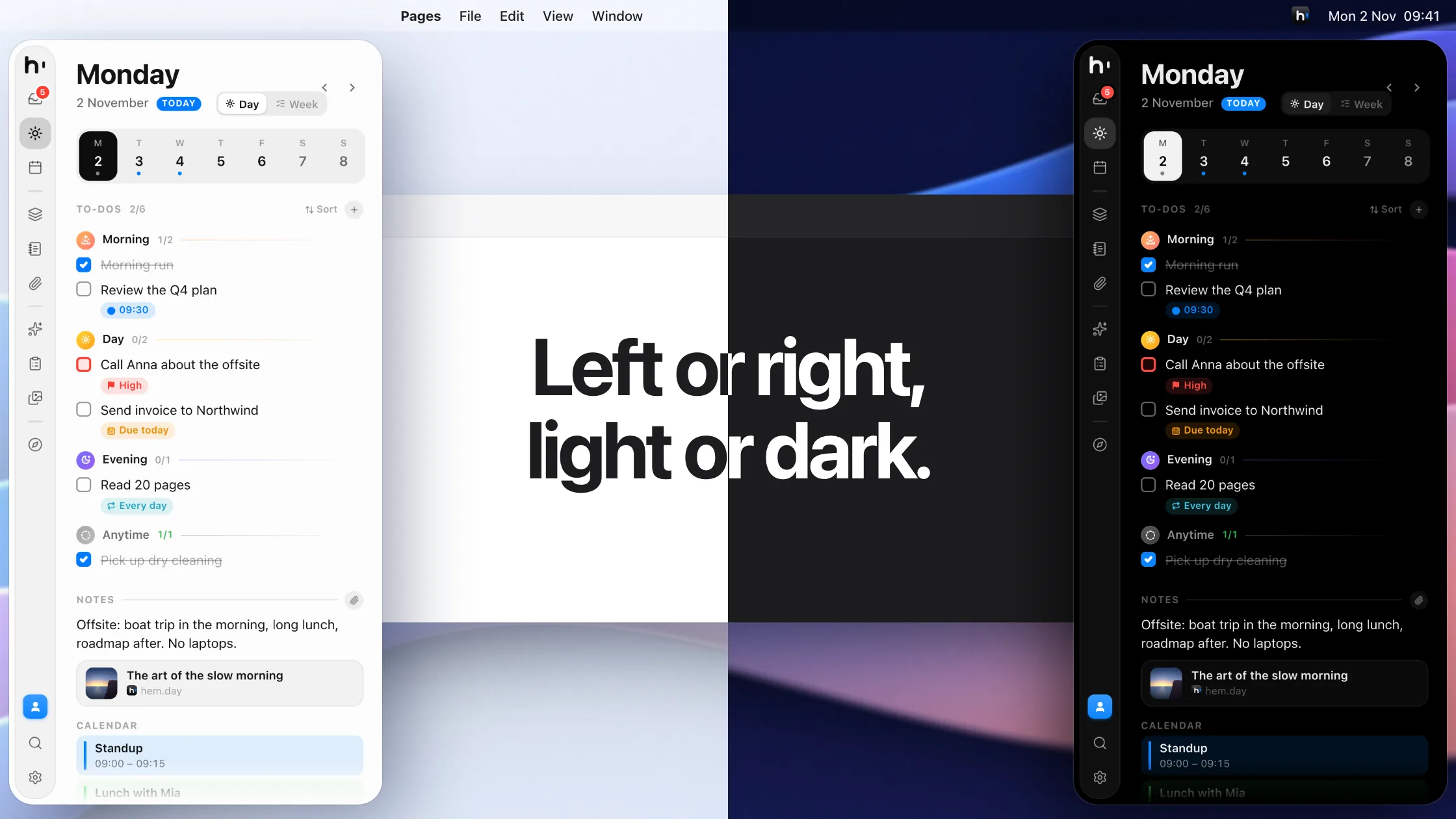
Left or right, light or dark: Hem in its light theme on the left edge of the screen and its dark theme on the right

No account. No server.

Everything you write stays on your Mac, as plain files you can open and read.

iCloud sync, if you want it.

Keep Hem the same on all your Macs through your own iCloud account. Hem works fully without it.

Backed up, and yours to take.

A backup every day, the last 14 kept. Export any day, note or prompt as Markdown or PDF.

Four themes, either side.

Auto, Light, Dark sidebar or Dark, on the left or the right of your screen.

Liquid Glass and haptics.

Made for macOS 26, with soft taps on a Force Touch trackpad.

Keyboard first.

⌘1 to ⌘0 jump between modules, and ⌥⇧Space captures from any app.

Next to the apps you use

Your day, right where you work.

Hem sits beside your AI chats, your code, your designs and your email. Your to-dos, notes and calendar are one move away, whatever is open.

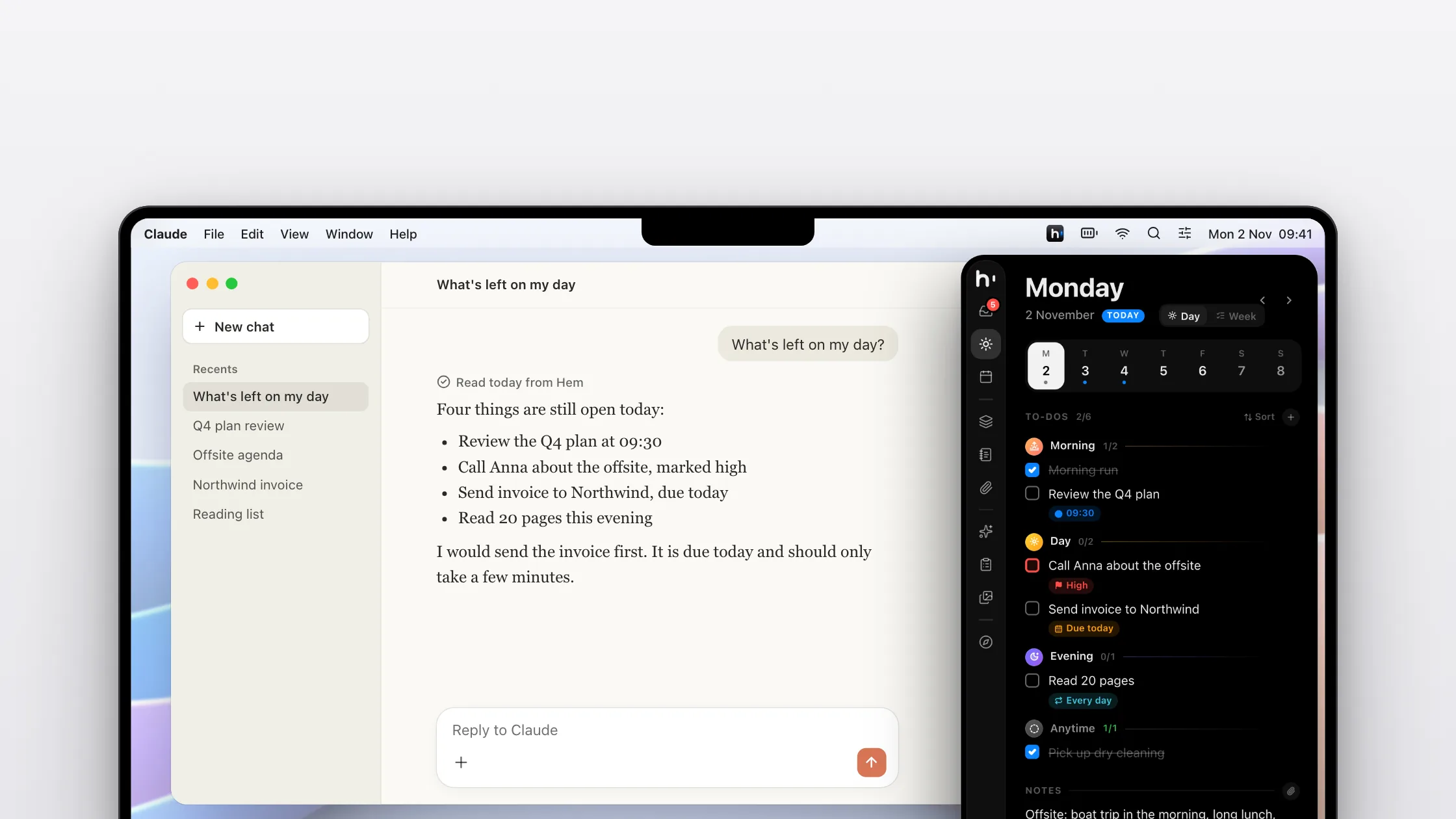
Claude answering “What’s left on my day?” from Hem, with Hem’s day view open beside it

With Claude

Ask what's left on your day.

Connect Hem to Claude and ask what's still open, and what to do first.

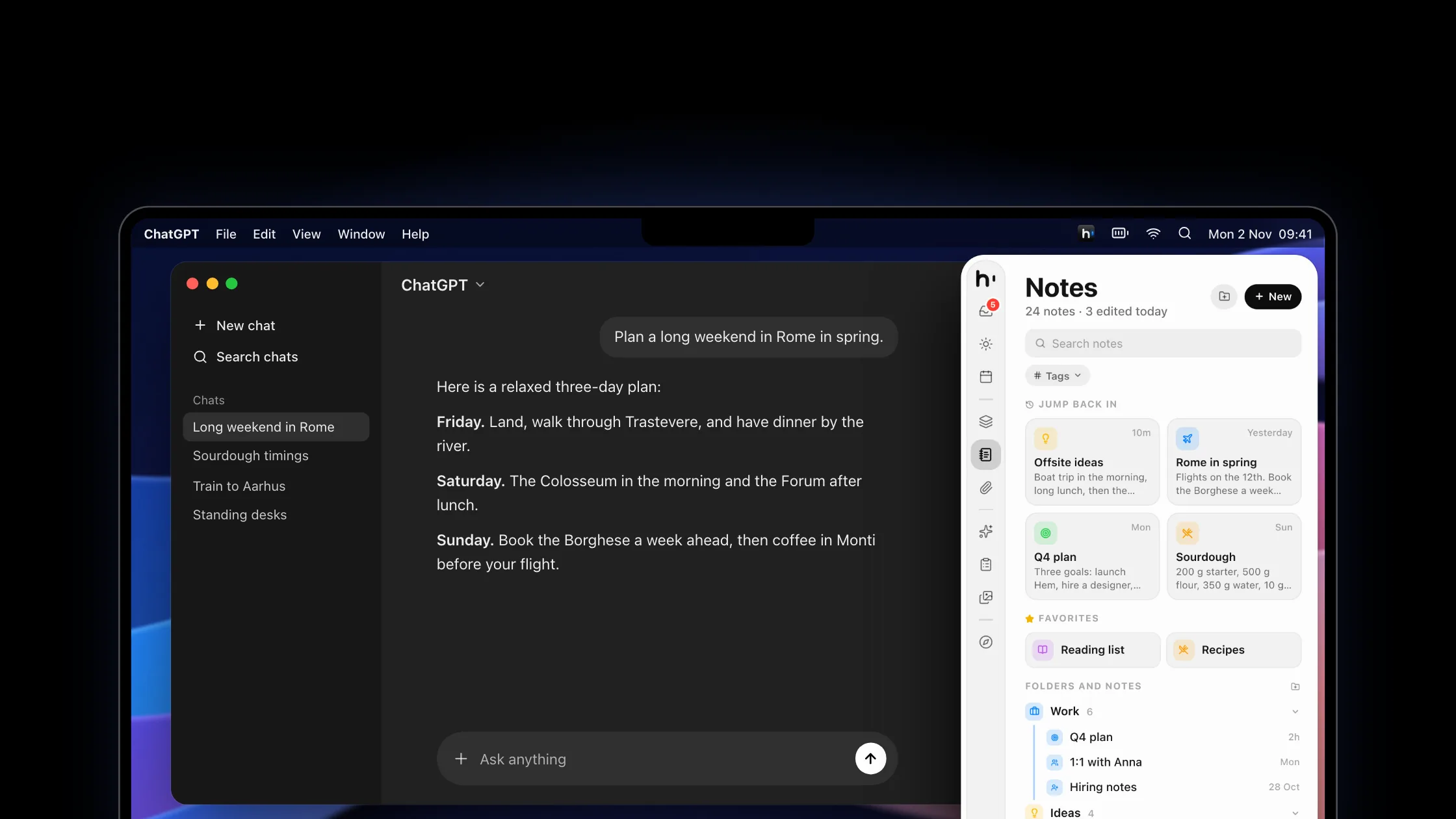
ChatGPT planning a weekend in Rome, with Hem’s Notes open beside it

With ChatGPT

Keep the plans you make.

Plan a weekend in a chat, then keep it in Notes, pinned and tagged.

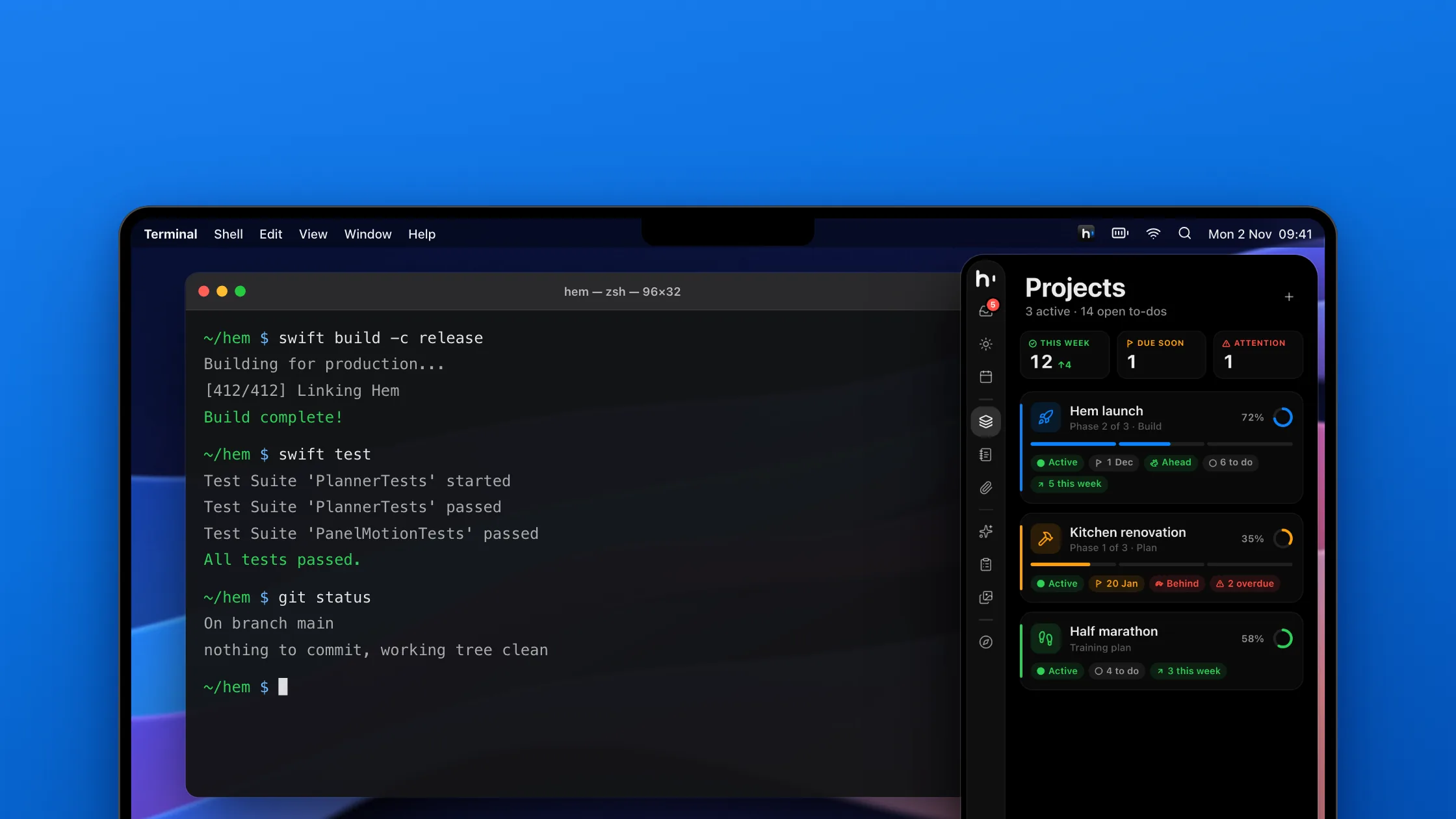
A Swift build in Terminal, with Hem’s Projects open beside it

In Terminal

See where every project stands.

While the build runs, Projects shows each phase, deadline and pace.

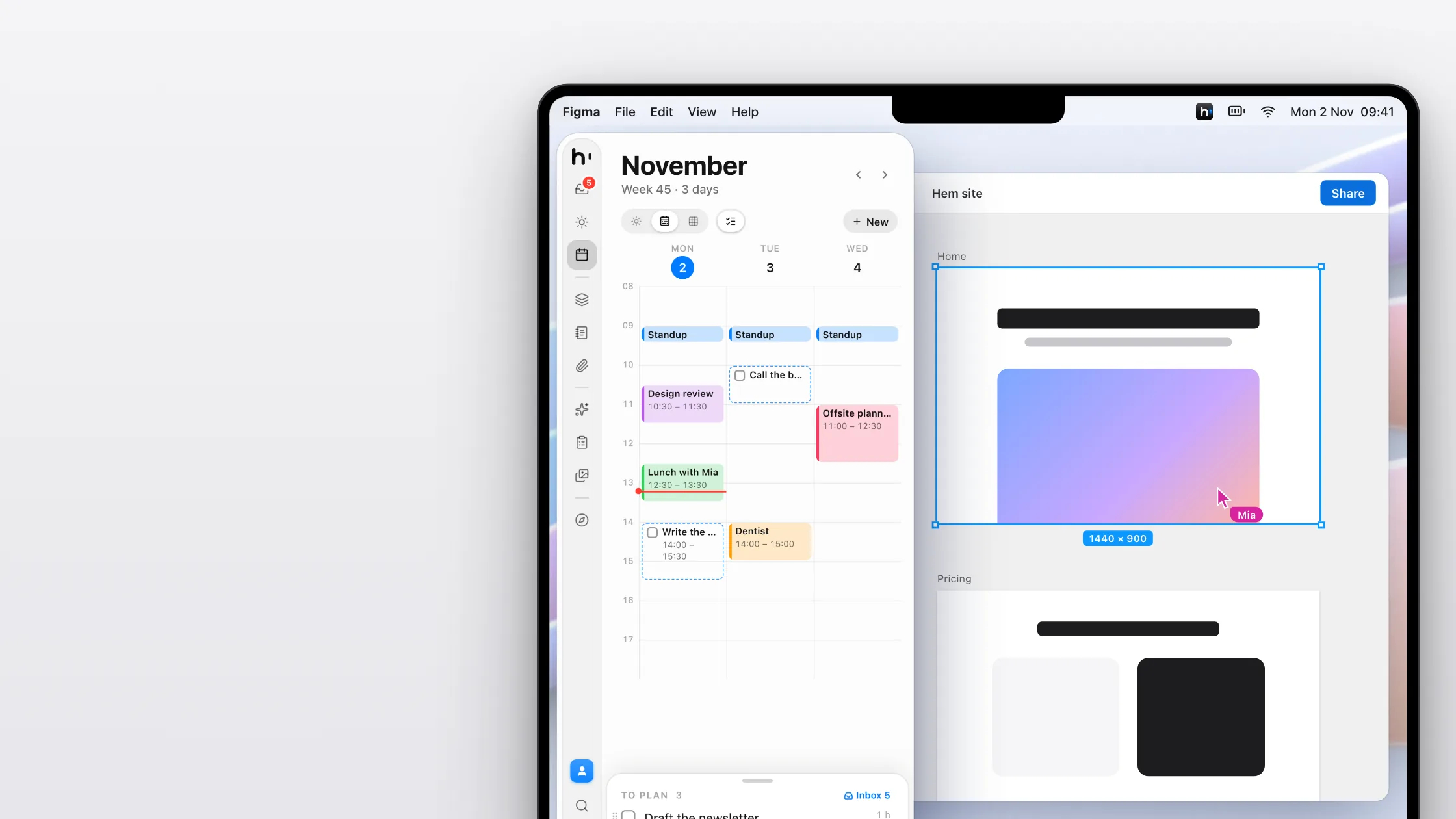
A design in Figma, with Hem open on the right edge of the screen

In Figma

Your week, next to your work.

Meetings and planned to-dos side by side, so you know how long you have before the next call.

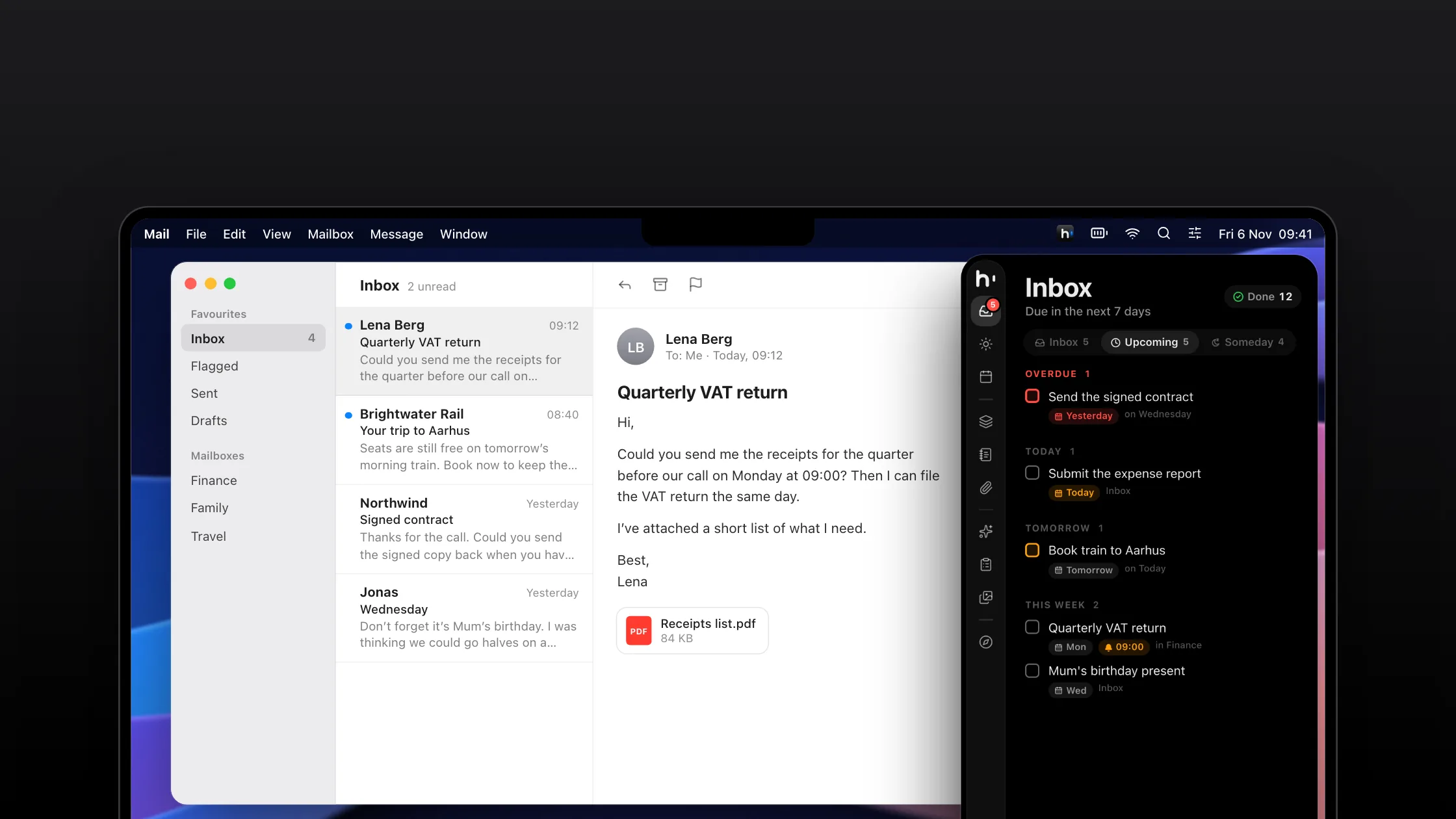
An email about a VAT return in Mail, with Hem’s Upcoming open beside it

In Mail

Turn email into to-dos.

Note it with ⌥⇧Space, and Upcoming lists what’s due in the next 7 days.

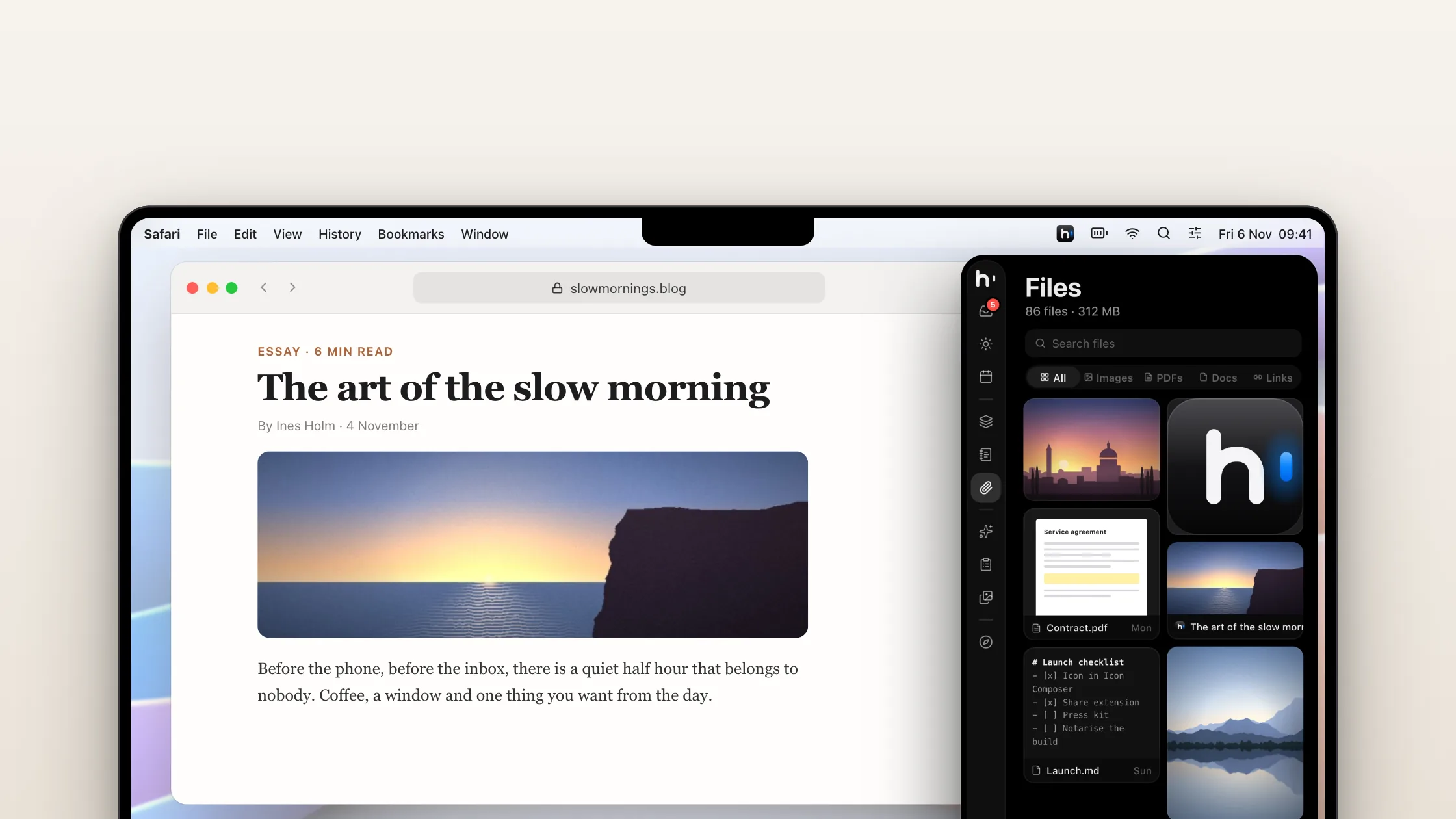
An article in Safari, with Hem’s Files open beside it

In Safari

Keep what you find.

Drop links, pictures and PDFs into notes. Files keeps them in one grid.

Pricing

Buy it once.
Keep it.

No subscription, no account and no tiers. One price for everything Hem does.

HemFor Mac
Launch deal
$ 29 $39

One-time purchase, plus local tax

First 100 buyers 100 of 100 left

0 bought at $29 Then $39

  • Every feature, no tiers
  • The iPhone app, included Coming soon
  • Use it on up to 3 of your Macs
  • All Hem 1.x updates included
  • Optional iCloud sync between your Macs
  • Clipboard, screenshot and image tools built in
  • MCP server for your AI apps
Checkout opens soon Until then, download Hem free›

No account needed · Your notes stay on your Mac

FAQ

Questions
and answers.

Something else? Write to hello@hem.day.

Is it really a one-time purchase?

Yes. You pay once and Hem is yours to keep. Every Hem 1.x update is included. If there is ever a Hem 2, owners will get a fair upgrade price, and Hem 1 keeps working either way.

Can I try it first?

Yes. Download Hem and use every feature free for 3 days. No account and no card. If you buy, everything you wrote stays where it is.

Where is my data stored?

On your Mac, as readable files in your Library folder. There is no Hem account and no Hem server. If you use more than one Mac, you can turn on iCloud sync, which goes through your own iCloud account. Hem works fully without it. Hem also makes a backup every day, to any folder you like.

Does it work with my calendar?

Hem uses the calendars already set up on your Mac, so iCloud, Google and Exchange all work. Events you add or move in Hem show up everywhere else, and to-dos you plan into the calendar stay in Hem.

Will it get in the way of my hot corners?

No. Hem keeps the corners on its side, and a little of the edge next to them, free by default, so hot corners and the Dock behave exactly as before.

Do I have to use the clipboard and screenshot tools?

No. Clipboard, Screenshots, Converter and the edge shelf are each off until you turn them on in Settings. A tool that's off takes no shortcuts, watches nothing and holds nothing in memory. What it kept stays on your Mac, and it picks up where it left off when you turn it back on.

What does the MCP server do?

It lets AI apps like Claude, Claude Code, Cursor and Codex read and plan your day with you: to-dos, notes, projects, prompts, skills and memory. You choose the access: off, read only, or read and write. It only listens on your own Mac, never on the network, and keeps a log of every change an agent makes.

Which Macs does it run on?

Any Mac with macOS 15 Sequoia or later. On macOS 26 Hem uses Liquid Glass, and on a Force Touch trackpad you will feel soft haptic taps.

Is there an iPhone app?

It’s on its way. Hem for iPhone is coming soon, and it comes with your Mac purchase at no extra cost.

What is the launch deal?

The first 100 people to buy Hem pay $29 instead of $39. The counter above shows how many spots are left. After that, Hem costs $39, and launch buyers keep everything they got.

Can I get a refund?

Try Hem free for 3 days first, so you know it fits before you pay. Because you get Hem straight away, the EU's 14-day right to cancel ends once the download starts, and the checkout asks you to agree to that. If Hem doesn't work as it should, write to us and we'll fix it, or give you your money back if we can't.